Casa Pacifica uses Microsoft Office 365 to send encrypted email. As with all encrypted email services, the recipient must use a web portal or special app to retrieve and read the encrypted email and any attachments. In our case the web portal is hosted by Microsoft.
Follow these steps to retrieve an encrypted email. The example shows how it looks on an iPhone but the process is the same regardless of what device you use.
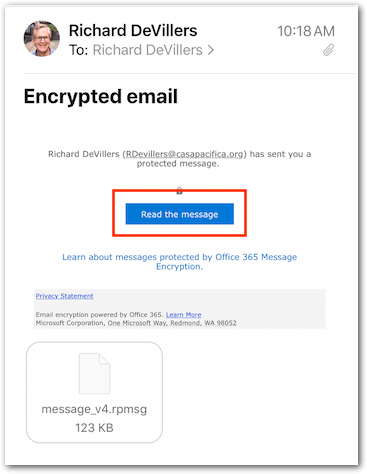
1) Open the email notifying you that an encrypted email was sent to you. Tap on the "Read the message" link in the email.
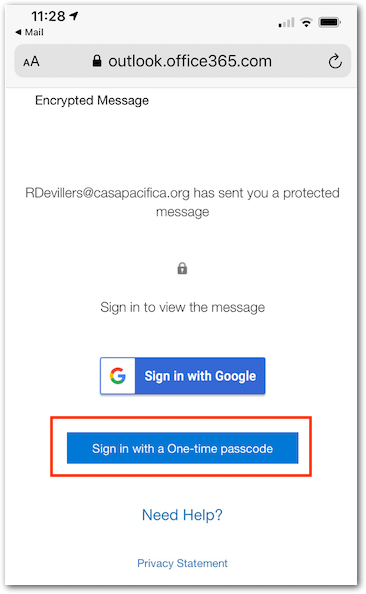
2) Your web browser will open a Microsoft webpage (outlook.office365.com). Tap on "Sign in with a One-time passcode":
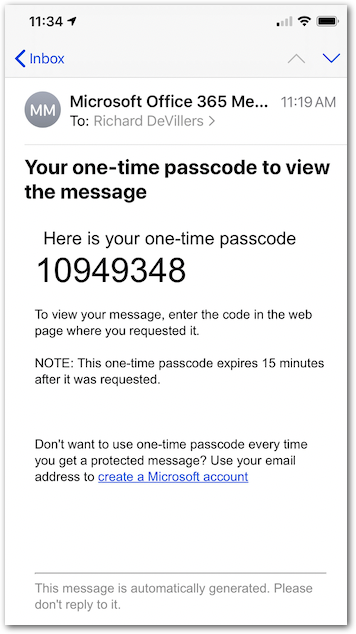
3) Microsoft will take you to a new webpage and send you an email with the passcode. Switch back to your Email app to retrieve (copy) the passcode that was sent to you:
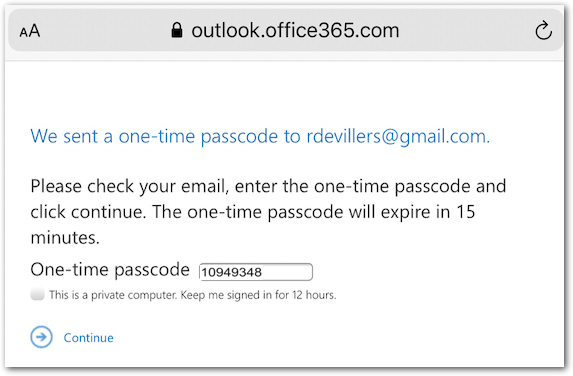
4) Back in the web browser enter the One-time passcode that was emailed to you and tap on "Continue":
The mail message and any attachments will be unencrypted and shown in the web browser.
0 Comments