The Ricoh printers allow you to scan in a document and have it sent to your email account. The printers use the Office 365 Employee Directory to locate email addresses. You search for your name by entering the first 2 or 3 letters of your first name.
To scan and email do the following from the control panel of the Ricoh printer:
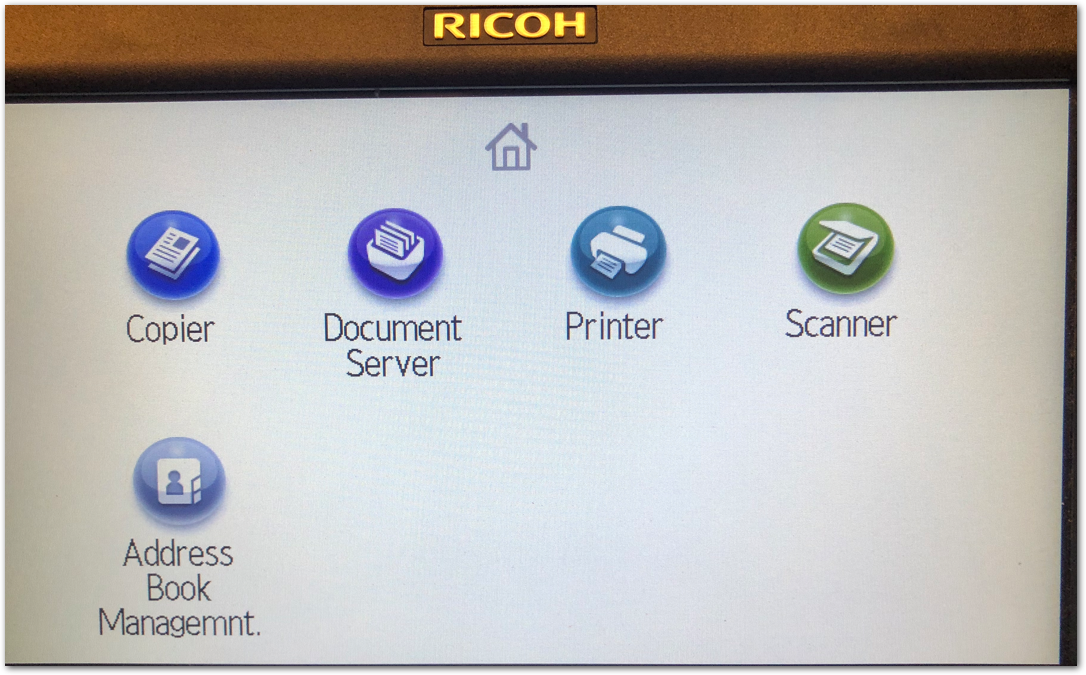
1) Place the document to be scanned and emailed in document feeder tray. If needed, press the "Home" button to power up the printer. Tap the "Scanner" button on the printer control screen:
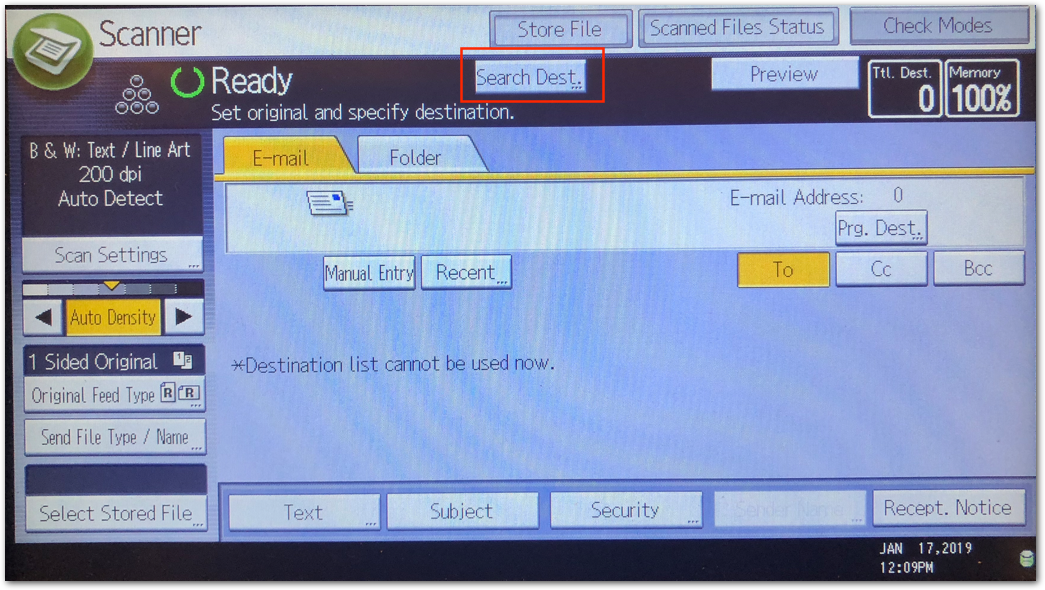
2) Tap on "Search Dest." to look up your email address:
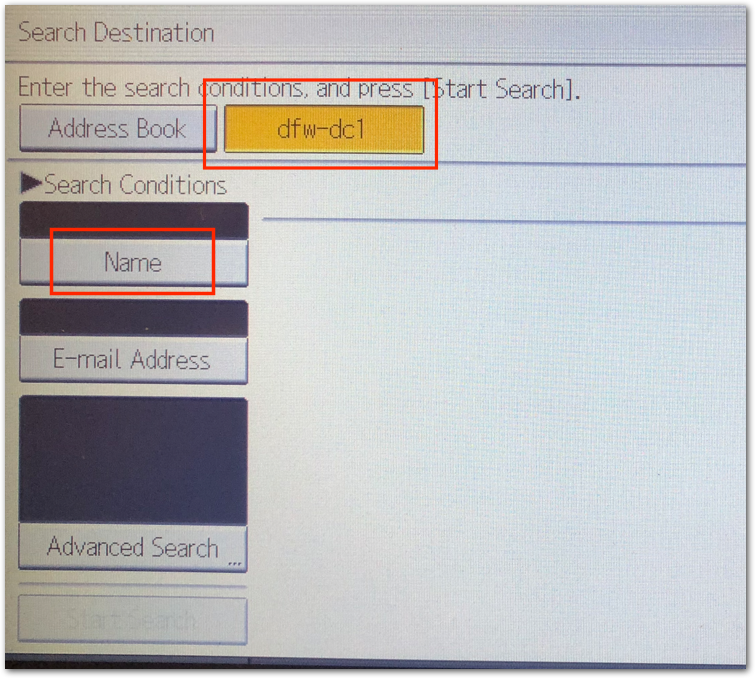
3) Make sure "dfw-dc1" is highlighted and tap on "Name":
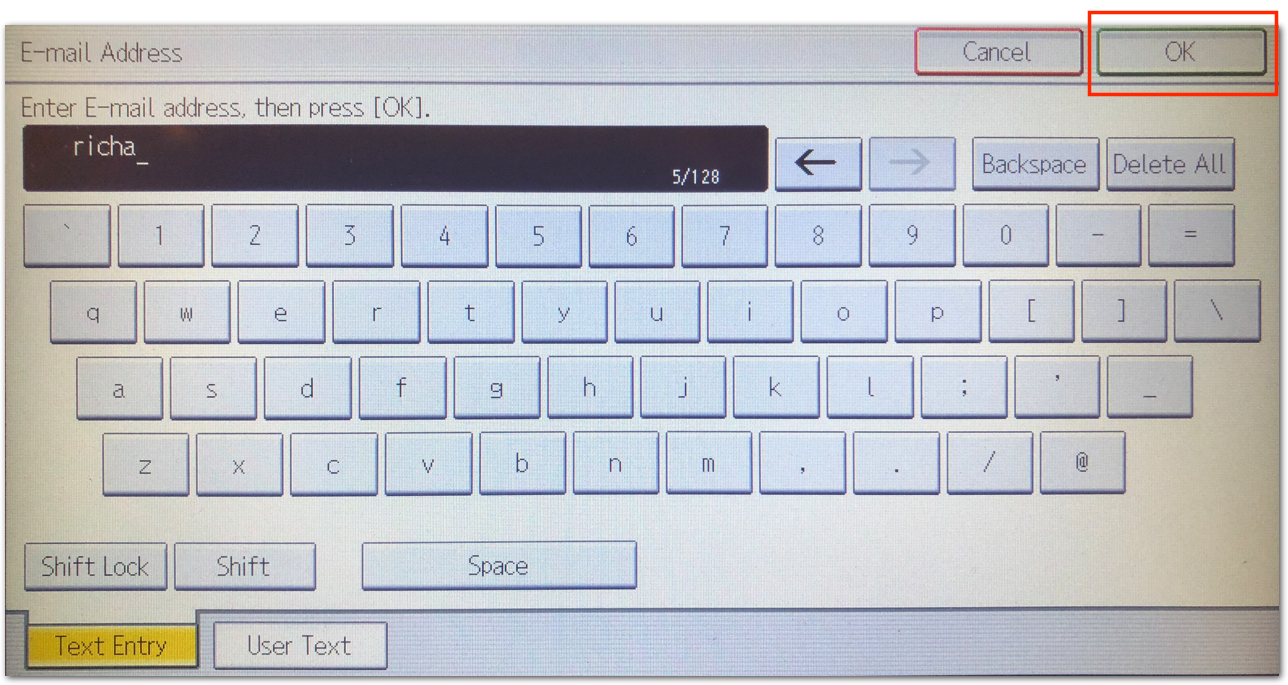
4) Use the on-screen keyboard to enter the first few letters of your first name and tap on OK:
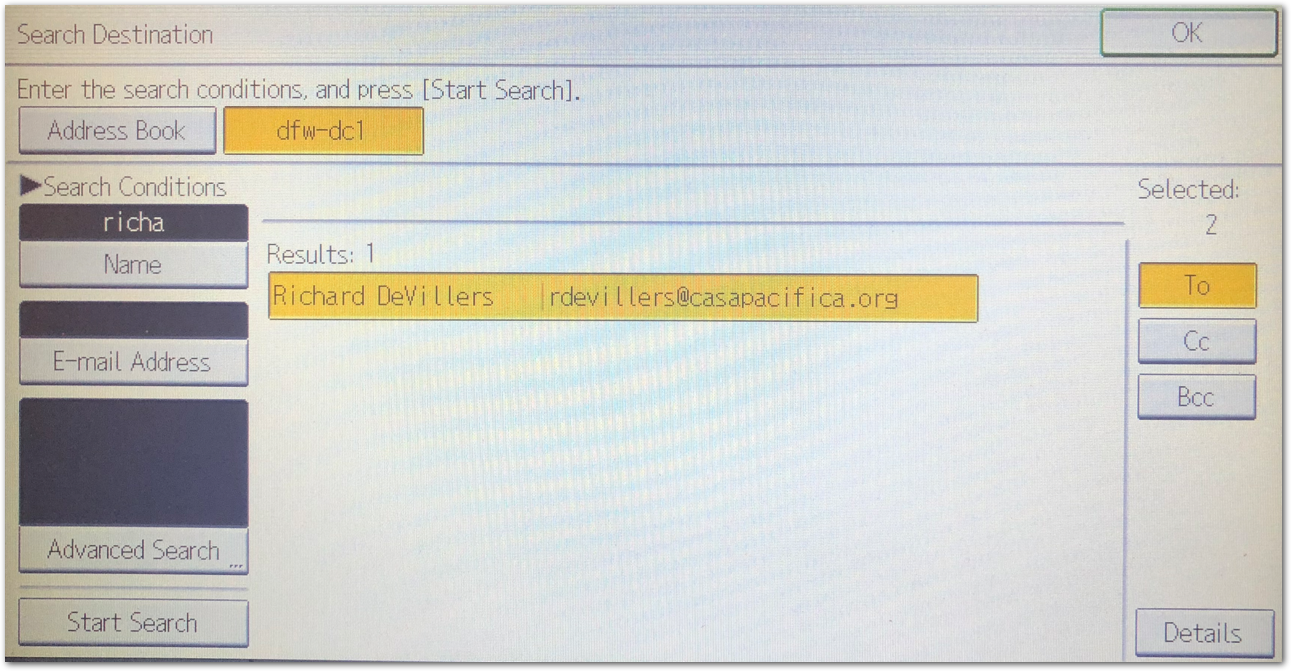
5) Back on the Search Destination screen tap on "Start Search":

6) Tap on your name / email address to highlight it and then tap on OK.
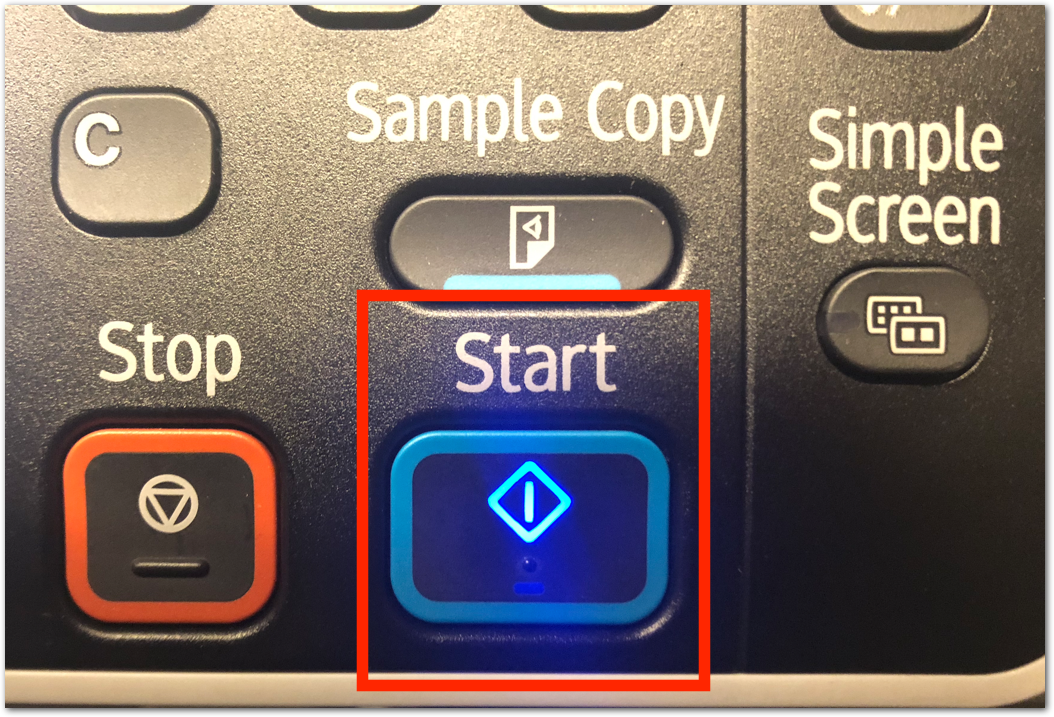
7) Press the "Start" button to scan and email the document.
To finish, press the "#" on the keypad and then press the "Home" button.
0 Comments