Avatar uses Windows font scaling to figure out how large to make the font it uses. On high resolution monitors this can result in very small, unreadable text. The following steps describe how to reconfigure Avatar so that the fonts will appear at a reasonable size.
This fix involves changing the execution settings for four of the Java programs (binaries).
Close Avatar if it is open.
Locate each of the files below in File Explorer:
- C:\Program Files(x86)\Java\jre\<java version>\bin\java.exe
- C:\Program Files(x86)\Java\jre\<java version>\bin\javaw.exe
- C:\Program Files(x86)\Java\jre\<java version>\bin\javaws.exe
- C:\Program Files(x86)\Java\jre\<java version>\bin\jp2launcher.exe
- (Example: C:\Program Files (x86)\Java\jre1.8.0_181\bin\java.exe)
For each file you will need to perform the following steps:
1) Right click on the file in File Explorer and choose "Properties".
2) Click on the "Compatibility" Tab.

3) In the "Settings" box click on the "Change High DPI Settings" button:

4) Under "High DPI scaling override" check the box next to "Override high DPI scaling behavior, Scaling performed by:"; select "System" from the pulldown; then click OK.
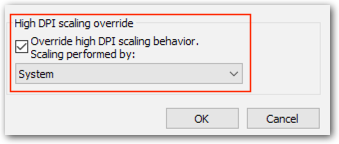
5) Click OK to save and close the "Properties" box.
0 Comments